This page describes how to delete Cloud Deploy resource, including the
following:
- [Delivery pipelines](https://docs.cloud.google.com/deploy/docs/delete-pipeline#delete_a_delivery_pipeline)
- [Targets](https://docs.cloud.google.com/deploy/docs/delete-pipeline#delete_a_target)
- [Custom target types](https://docs.cloud.google.com/deploy/docs/delete-pipeline#delete_a_custom_target_type)
- [Automations](https://docs.cloud.google.com/deploy/docs/delete-pipeline#delete_an_automation)
## Delete a delivery pipeline
You can delete a delivery pipeline from the Google Cloud console or using
the gcloud CLI.
### Delete a delivery pipeline using the Google Cloud console
1. In the Google Cloud console, navigate to the Cloud Deploy
**Delivery pipelines** page to find the delivery pipeline you want to delete.
[Open the Delivery pipelines page](https://console.cloud.google.com/deploy/delivery-pipelines)
2. Click the name of the delivery pipeline you want to delete.
The **Delivery pipeline details** page is shown.
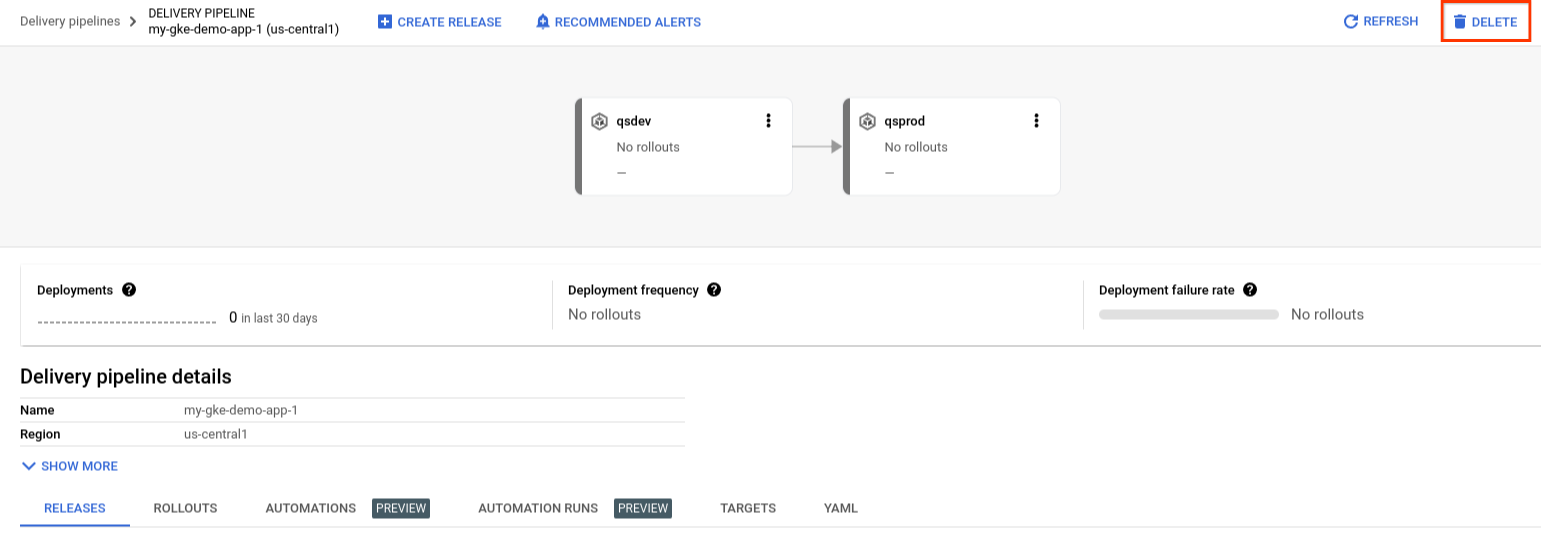
3. Click **Delete**.
### Delete a delivery pipeline using the gcloud CLI
If you have a delivery pipeline without any subresources (releases or rollouts),
you can delete it by running the following command:
gcloud deploy delivery-pipelines delete PIPELINE_NAME
If the pipeline you want to delete has any releases or rollouts associated with
it, you need to include the`--force` flag in order to delete the pipeline and
those subresources:
gcloud deploy delivery-pipelines delete PIPELINE_NAME --force
Cloud Deploy prevents you from deleting the pipeline if there's a
release or rollout in a state that would cause problems if deleted. For example,
you can't delete a delivery pipeline if a rollout is in the `PENDING` state, but
you *can* delete it if the rollout is in a `PENDING_APPROVAL` state. If you
can't delete the pipeline, you need to reject approval, or advance or cancel the
rollout to a terminal state (such as `SUCCEEDED` or `FAILED`).
## Delete a target
You can delete a target from the Google Cloud console or using the
gcloud CLI. These two methods are described in the sections that
follow.
### Delete a target using the gcloud CLI
When you delete a target using the gcloud CLI, that targets is
deleted whether or not it's in use by any delivery pipeline.
Use the following command to delete a target from the gcloud CLI:
gcloud deploy targets delete TARGET_NAME --region=REGION
Where:
TARGET_NAME is the name of the target you
want to delete. This is the same as the value for `metadata.name` in the
[target configuration](https://docs.cloud.google.com/deploy/docs/config-files#target_definitions).
REGION_NAME is the name of the region in which
the target was created, for example `us-central1`.
Cloud Deploy doesn't prevent you from deleting a target that's
actively used by other delivery pipelines.
### Delete a target using the Google Cloud console
You can delete a target using the Google Cloud console, only if that target
isn't in use by an existing delivery pipeline resource. That is, if there is a
pipeline with a stage that points to the target, then you can't delete the
target from the Google Cloud console.
Follow these steps to delete the target using the Google Cloud console:
1. Navigate to the Cloud Deploy **Targets** page.
All available targets in your current project are displayed.
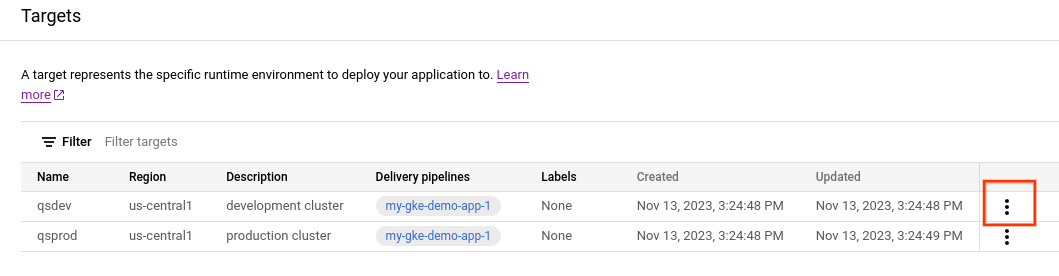
2. Click the

menu icon for the target you want to delete.
3. Click **Delete target**.
If the target you're trying to delete is referenced by a delivery pipeline, you can't select **Delete target**.
If the target *isn't* referenced by a delivery pipeline, the **Delete target** dialog is shown.
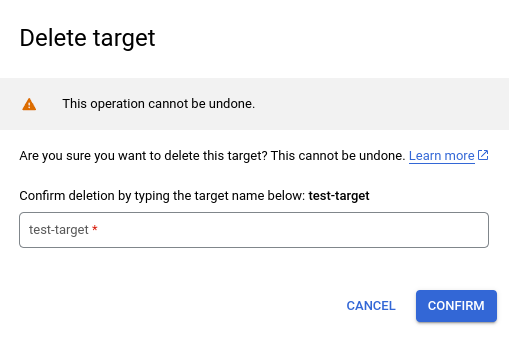
4. Type the target name in the text field provided, and click **Confirm**.
## Delete a custom target type
From a command shell, use the following command to delete a
[custom target type](https://docs.cloud.google.com/deploy/docs/custom-targets) resource:
gcloud deploy custom-target-types delete CUSTOM_TARGET_TYPE_NAME \
--region=REGION_NAME
Where:
- CUSTOM_TARGET_TYPE_NAME
Is the name of the custom target type you want to delete. This is the same as
the `metadata.name` property in the
[custom target type definition](https://docs.cloud.google.com/deploy/docs/config-files#custom_target_type_definitions).
- REGION_NAME
Is the region in which you created the custom target type, for example
`us-central1`.
## Delete an automation
You can delete any automation resource created in your project. You can delete
the automation using the Google Cloud console or the
gcloud CLI:
### Delete an automation using the Google Cloud console
1. In the Google Cloud console, navigate to the Cloud Deploy
**Delivery pipelines** page to find the delivery pipeline your automation is
associated with.
[Open the Delivery pipelines page](https://console.cloud.google.com/deploy/delivery-pipelines)
2. Click the name of your delivery pipeline.
3. Under **Delivery pipeline details** , select the **Automations** tab.
4. Click the name of the automation you want to delete.
The **Automation details** are shown.
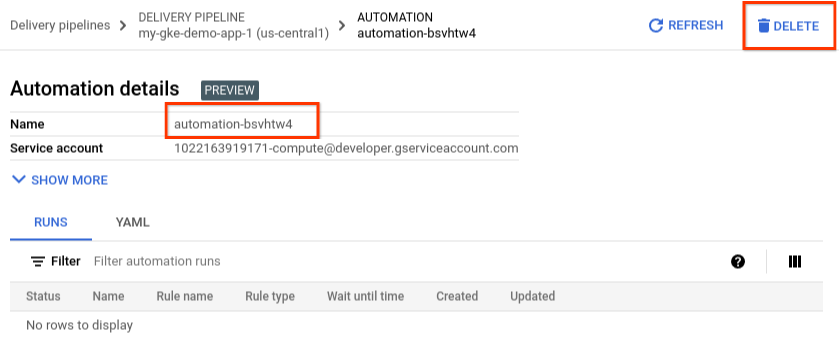
5. Click the **Delete** button, and confirm the deletion by typing the
automation name and clicking **Confirm**.
### Delete an automation using the gcloud CLI
From a command shell, use the following command to delete an automation
resource:
gcloud deploy automations delete AUTOMATION_NAME \
--delivery-pipeline=PIPELINE_NAME \ --region=REGION_NAME
Where:
- AUTOMATION_NAME
Is the name of the automation you want to delete. This is the same as the
`metadata.name` property in the
[automation definition](https://docs.cloud.google.com/deploy/docs/config-files#automation_definitions).
- PIPELINE_NAME
Is the name of the delivery pipeline this automation is associated with. All
automations exist only within the scope of one delivery pipeline.
- REGION_NAME
Is the region in which you created the automation, for example `us-central1`.
## What's next
- Find out how to [suspend a delivery pipeline](https://docs.cloud.google.com/deploy/docs/suspend-pipeline).
- Learn more about [automations](https://docs.cloud.google.com/deploy/docs/automation).
- Learn how to [use service notifications](https://docs.cloud.google.com/deploy/docs/subscribe-deploy-notifications)